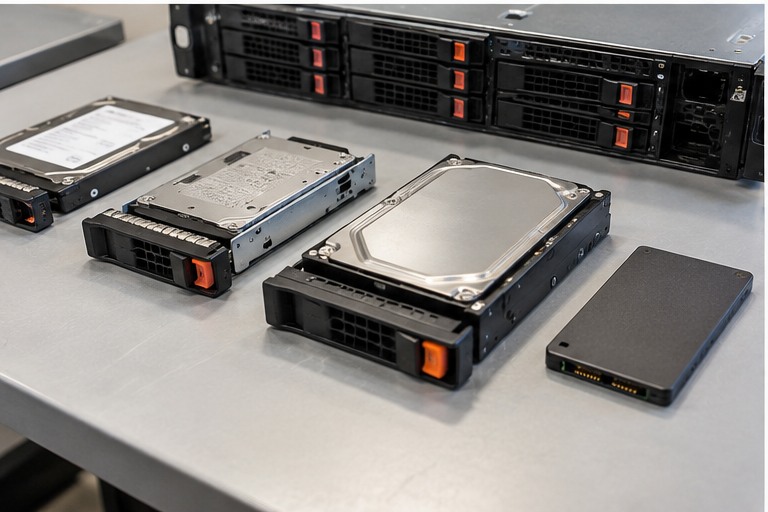
This chapter is written as practical infrastructure training. It explains the decision, the technical reason behind it, the checks to perform, the mistakes to avoid and what a successful result should look like.
What you should be able to do after this chapter
- Separate drive media, interface and physical form factor.
- Check backplane, controller and carrier compatibility before ordering.
- Select SSD endurance and HDD characteristics from workload.
- Replace a failed RAID member without relying on physical appearance alone.
Never approve a server component from the marketing name, connector, wattage, capacity or physical appearance alone. Use the exact server model and generation, manufacturer documentation, supported option list and current firmware requirements.
1. Separate media, interface and form factor
HDD versus SSD describes the storage media. SAS, SATA and NVMe describe different interfaces or protocols. 2.5-inch and 3.5-inch describe physical form factors. These are separate properties.
A 2.5-inch bay can be used by different drive technologies on some servers, but only if the backplane, controller and platform support them.
2. SAS and SATA
SAS is common in enterprise server storage and supports dual-port capabilities in suitable architectures. SATA is widely used for capacity and cost-sensitive workloads. A SAS controller can often support SATA drives, but that does not mean every server/backplane combination accepts every SAS or SATA drive.
Current Server Warehouse hard-drive examples include SATA, SAS and NL-SAS products across different capacities, rotational speeds and sector formats.
3. NVMe is not simply a faster SATA SSD
NVMe uses PCIe rather than the SATA command path. The server needs an NVMe-capable backplane or direct PCIe connection and the correct firmware/support. A drive that physically resembles another 2.5-inch device may use a completely different electrical interface.
4. HDD workload characteristics
Rotating drives remain useful for capacity-oriented storage. RPM affects rotational latency, but practical array performance also depends on seek pattern, queueing, RAID layout, controller and workload. Do not turn 7.2K, 10K or 15K RPM into a universal performance guarantee.
5. SSD endurance and workload class
Enterprise SSDs may be classified for read-intensive, mixed-use or write-intensive workloads. Endurance is often expressed using drive writes per day or total bytes written in manufacturer documentation. A read-intensive SSD can be appropriate for many workloads, but heavy sustained writes require an endurance check.
The current Server Warehouse SSD category contains both read-intensive and mixed-use examples, illustrating why capacity alone is not enough.
6. Sector formats such as 512n and 512e
Drive sector format can matter to controllers, operating systems and array compatibility. Current catalogue examples include 512n and 512e descriptions. Do not mix sector formats in an existing array unless the controller and migration procedure explicitly support the combination.
7. Carriers, caddies and hot-plug bays
The drive carrier provides mechanical installation and may include status-light interfaces. A correct carrier does not convert the underlying drive interface. Check the server generation, bay type and carrier family.
Hot-plug capability also depends on the complete storage path. Never remove a drive because the carrier has a release latch. Confirm the array state and exact drive identity first.
8. Backplanes and controller paths
The backplane connects the front drive bays to a storage controller, HBA, motherboard or PCIe path. Servers can have multiple backplane options within the same chassis family. A base model may therefore not support the same drive types as another configuration of the same server.
9. Boot drives versus data drives
Many servers use dedicated boot devices, mirrored M.2 modules or internal boot controllers so front hot-swap bays remain available for data. The best design depends on hypervisor/OS requirements and platform support.
10. Replacing a failed RAID member
- Confirm the array and failed physical drive in the storage-management tool.
- Match slot/bay identity to the physical server.
- Confirm the replacement drive is supported and suitable for the array.
- Check capacity and sector-format requirements.
- Follow the controller/server hot-plug procedure.
- Monitor rebuild state and event logs.
- Do not remove another member while the array is degraded unless the documented recovery procedure requires it.
11. Capacity expansion
Adding a larger drive does not automatically increase array capacity. RAID controllers and filesystems have specific expansion procedures. In many RAID layouts, usable capacity remains constrained by the smallest member until the array is deliberately expanded or rebuilt with larger drives.
12. Selection worksheet
| Requirement | Record before purchase |
|---|---|
| Platform | Server model, generation, backplane and bay count |
| Interface | SAS, SATA, NVMe or platform-specific boot device |
| Media | HDD or SSD and workload/endurance class |
| Form factor | 2.5-inch, 3.5-inch, M.2 or other supported format |
| Controller | RAID/HBA model, firmware and supported drive path |
| Array | RAID level, existing members, sector format, spare policy |
| Carrier | Correct server-generation carrier/caddy |
RELATED HARDWARE
Apply the lesson to Server Warehouse
These links identify the hardware class discussed in the chapter. They are not automatic compatibility claims for a specific server.
Technical references
Manufacturer documentation is the final authority for model-specific population, compatibility, service and safety procedures.